Post-processing - Painting light and shadows
Posted 4 years ago

You can do a lot with your lighting after you took the shot!


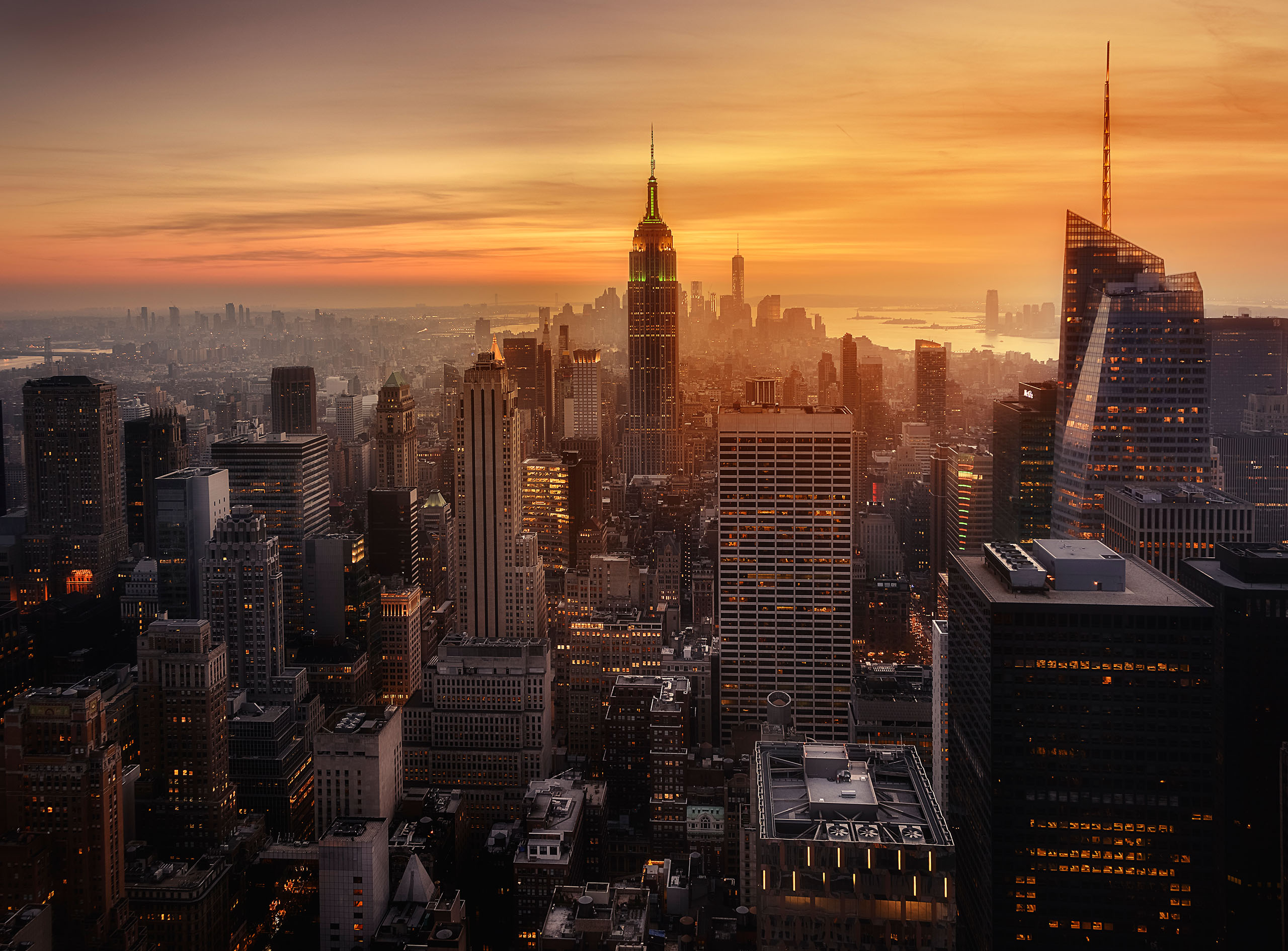
Image before enhancement:

Image after enhancement:

To do this simply create a layer above your image in Photoshop and set it's blending mode to "Soft Light" Then draw with your brush (big and soft) black or white color spots where you want your shadows and where you want your highlights, use your eraser to revert your changes.

The layer I did on this image looks like this (with opacity set to 75%):


I hope this will help you, if you have any further questions let me know!
If you did an image with this technique I'm ready to give critique if you wish...
 
Posted 4 years ago
Peter De Smidt wrote
Christopher, what advantage is their to doing it this way as opposed to creating a Soft Light layer filled with 50% gray? Everything else is the same, except you could paint with 50% gray to get back to no effect.

I'm not sure if I understand your question right, but the advantage is in the workflow.
If you use 50% gray instead of transparency, you will be slower...

1. black/white/transparent
use "x" to switch black and white use "b" and "e" for brush and eraser.
2. black/white/gray
go pick around in your color palette =)
 
Posted 4 years ago
ok!! let me to try....thks chris!! you really help me fully
 
Posted 3 years ago
Nice one... Thanks!
 
Posted 2 years ago
Thanks for this tip... a very subtle effect.
How did you achieve the colorized affect in the top most shot to start with? I recognize this approach on many images on 1x but have never managed to isolate the process. I would be very grateful if you could point me in the right direction.

Cheers
Kevin
 
Posted 2 years ago
Your before image was already manipulated....
 
Posted 2 years ago
yes?!
 
Posted 2 years ago
Thanks Chris... It was helpful...
 
Uzay 
Posted 2 years ago
I can't see the images, is there something wrong with me or the link of the photos are no more visible?
 
Posted 2 years ago
Uzay wrote
I can't see the images, is there something wrong with me or the link of the photos are no more visible?

Strange, I have no problem seeing them
 
Posted 2 years ago
no. your "before" image has clearly been manipulated already.
 
Posted 2 years ago
As others have said, the before image was already edited (heavily). However, I think the point was to demonstrate dodging and burning. There are many ways to do it. I prefer this method:

Layer -> New Layer.
Blending mode to soft light.
Check the "Fill 50% Neutral Gray"
OK.

Soft brush.
Paint black and/or white where you want it.
The end.

You need a good eye to begin with, though. It's literally painting/illustration.

Another method would be to use the doge/burn tools. But, that is destructive editing.
 
Christoph Hessel  Head moderator
Posted 2 years ago
FourT6and2 wrote
Another method would be to use the doge/burn tools. But, that is destructive editing.

not, if You use them on the 50% gray Layer with soft light blending...

 
JBA 
Posted 2 years ago
or if you use them on a duplicate layer and adjust the opacity to taste. . .
 
 
Compose a reply
You must sign in if you want to post a reply.
Fine Art Prints  -  Our books  -  Work with us  -  FAQ  -  About 1X
© 1X Innovations AB 2007-2011. All rights reserved.
 
 Stumble 1X